

How to Make Stacked Family Name Ornaments and Signs
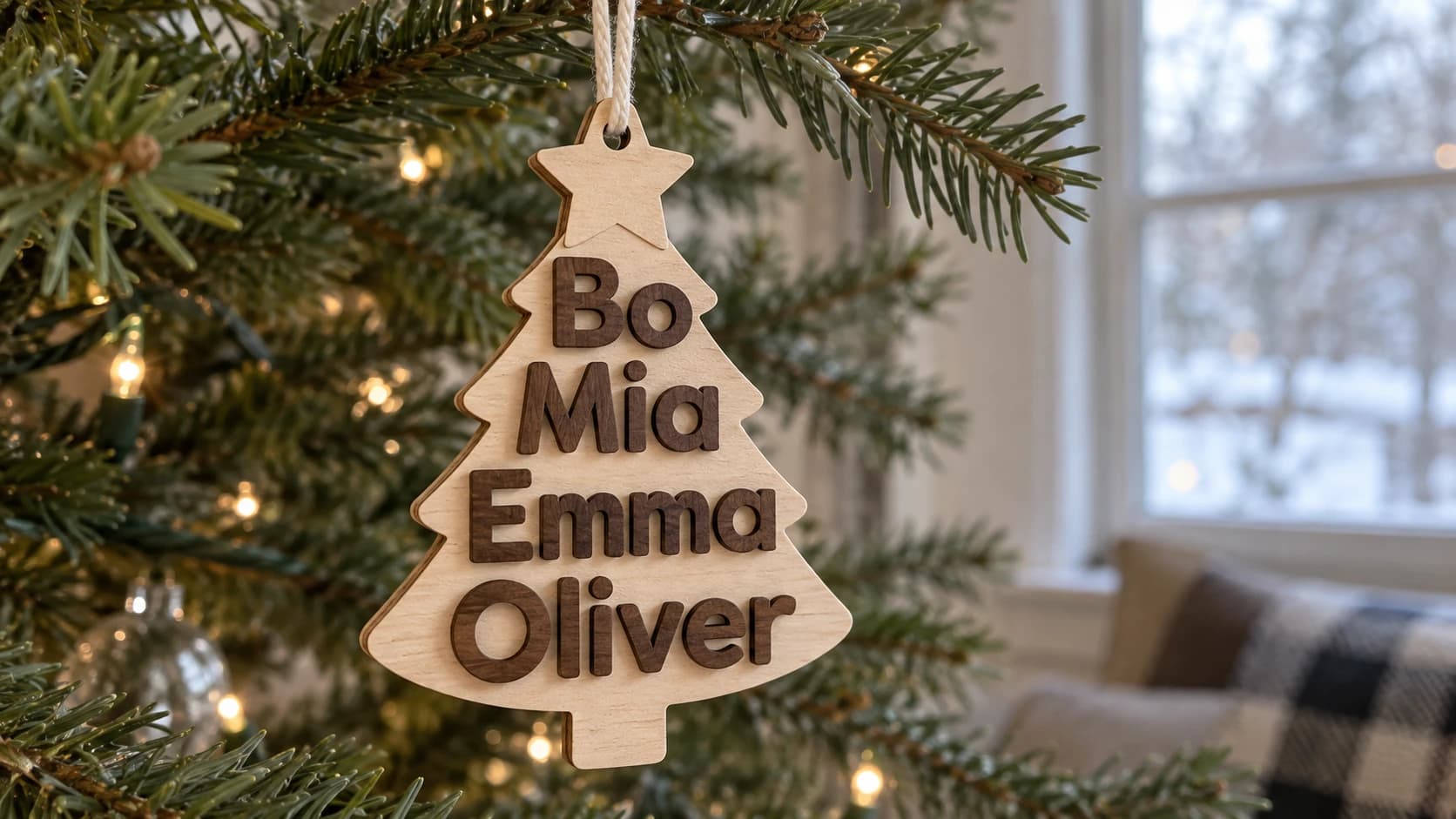
You have seen the design: a stack of family names, each on its own row, arranged so the whole thing forms the shape of a Christmas tree. A star on top, a little trunk at the bottom. It is one of the best-selling personalized ornaments out there, and for good reason. It is meaningful, it is custom, and people love seeing their family's names in it. Building one by hand, though, means carefully sizing and centering a dozen names so they weld into a clean, connected shape. Get one row wrong and the whole tree falls apart, literally, into loose letters.
Evergreen is built for exactly this. Type in the names, pick a tree or a stack layout, and it arranges, sizes, and welds them into one solid piece you can preview in 3D and send to your machine.
Tree or Stack
Evergreen does two layouts from the same list of names:
- Tree sorts the names into a Christmas-tree silhouette, shorter names near the top and longer ones toward the bottom, with an optional star or other topper and a trunk at the base.
- Stack lines the names up in a straightforward stacked sign, which is perfect for family name signs, established-date plaques, and address signs.
So the same tool makes a seasonal ornament and a year-round sign. That is a lot of product range from one design.
PRINT. CUT. CARVE.
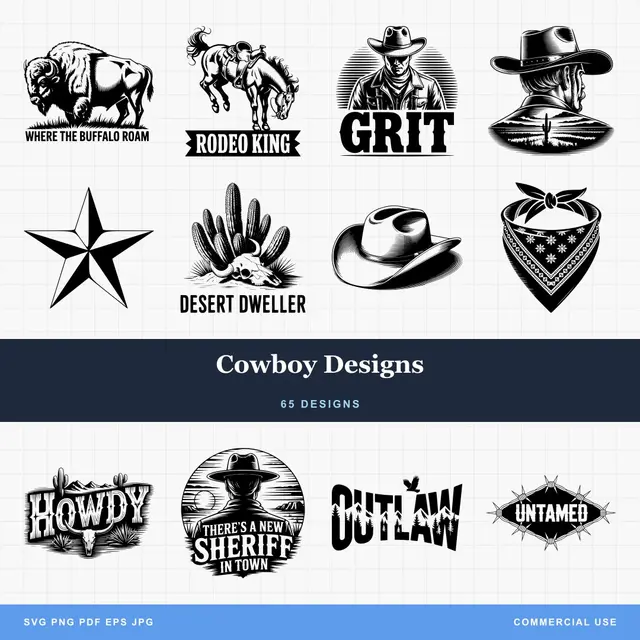
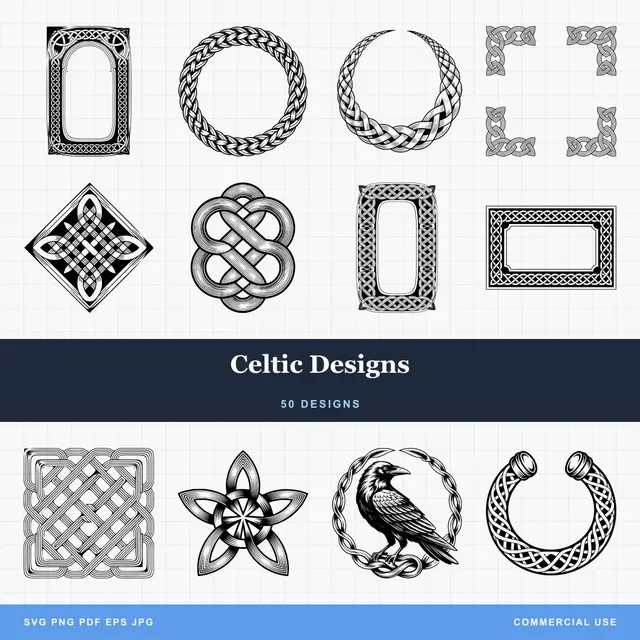
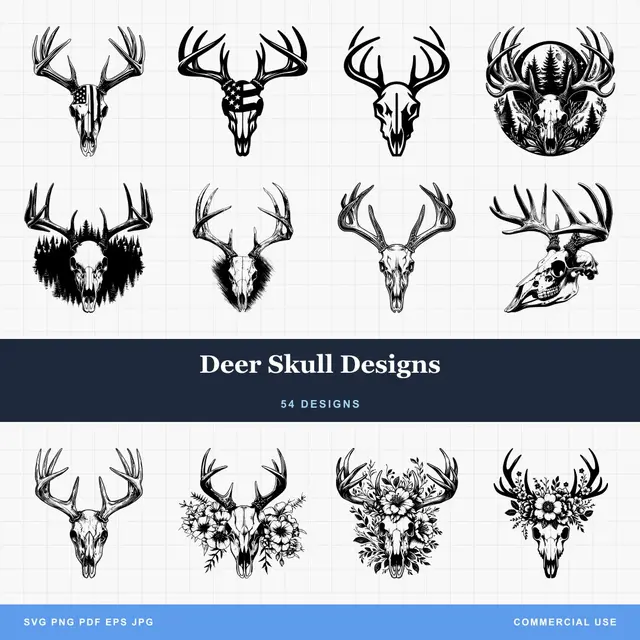
- Multiple formats (SVG, DXF, PNG)
- Machine-tested designs
- Commercial licenses
Sponsored by PrintCutCarve.com
Auto Sort Does the Hard Part
The trick that makes a name tree look right is arranging the rows by width so the outline forms a clean triangle. Evergreen has an Auto Sort option that orders the names by width for you, building the tree shape automatically. Turn it on and the arrangement just works. Turn it off when you want to control the exact order yourself.
For the Stack layout you get alignment control (left, center, or right) so the sign reads the way you want.
Tip
Need one name bigger or smaller without touching the others? Add a plus or minus at the end of that name to resize it by 5% per character. Two plus signs makes it 10% larger. The modifiers do not show up in the finished design, they just tune the sizing.
Everything Welds Into One Piece
The reason these designs work is that the rows overlap and fuse into a single connected object. Evergreen manages that with a few controls:
- Weld overlap sets how much the rows overlap so they bond into one piece.
- Bars add a connecting bar behind or between rows for extra strength (set bar thickness to zero to leave them off).
- Bar rounding softens the corners, which also helps on CNC.
The live 3D preview shows you the welded result before you make anything, so you can confirm every letter is connected.
Warning
Evergreen warns you when parts of the design are not connected and would come out as separate pieces. If you see that, increase the overlap or bar thickness, or reduce the line height, until everything joins. Uniform-height fonts connect the most reliably. With freeform or script fonts, check the preview for floating dots, accents, or stray letters.
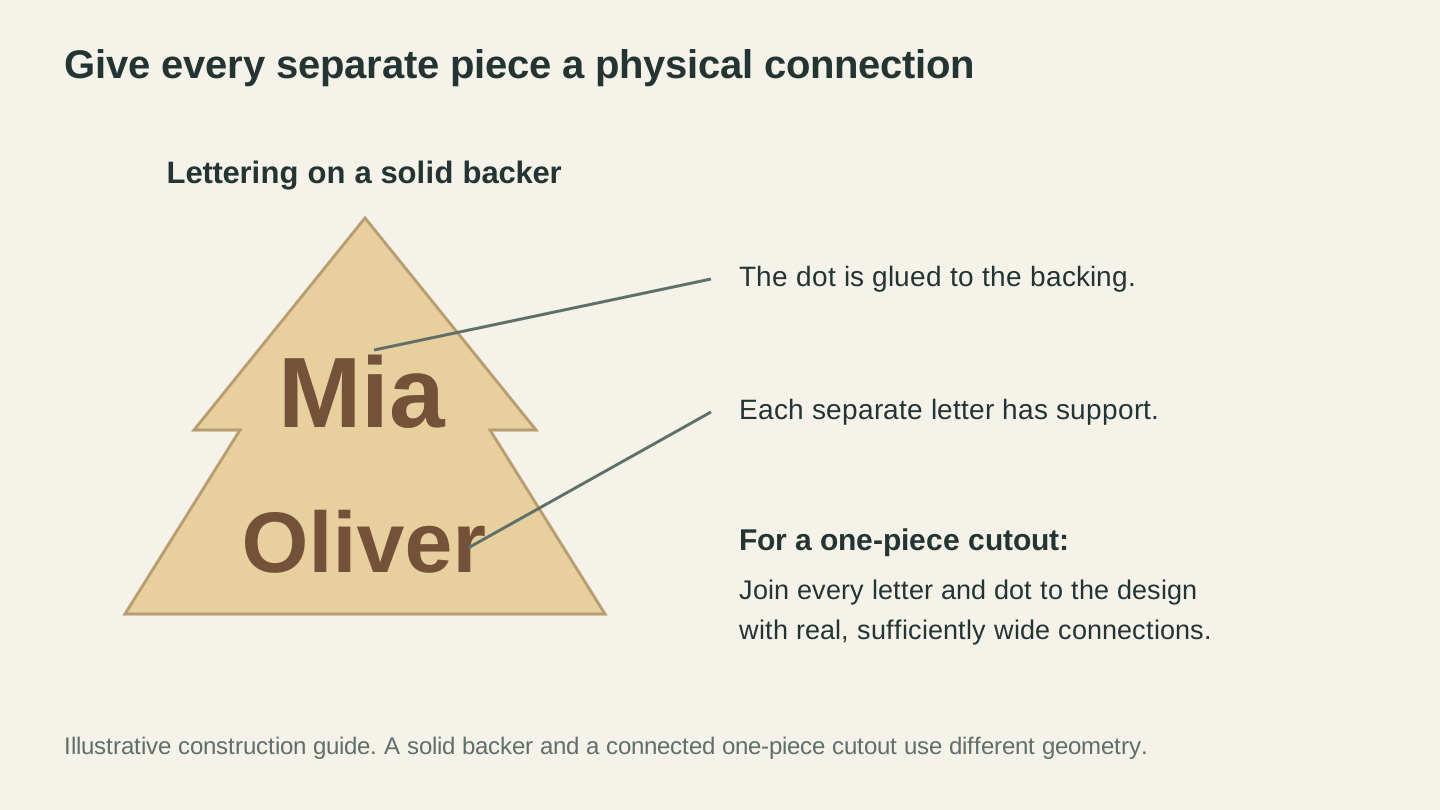
Check how each piece stays attached before exporting. Separate letters can sit on a backer; a one-piece cutout needs connections throughout the design.
Toppers, Holes, and a Backer
The details are what make it a finished product rather than a craft-blank:
- Topper adds a star, snowflake, or other icon at the top of the tree, in a size you set.
- Hanging hole puts a hole where the ribbon or hook goes, with a rim thickness so it does not tear out.
- Bottom row or trunk finishes the base, either with a final name row or a little tree trunk.
- Backer adds a solid back layer behind the names, in a contrasting color, which both strengthens the piece and makes the names pop.
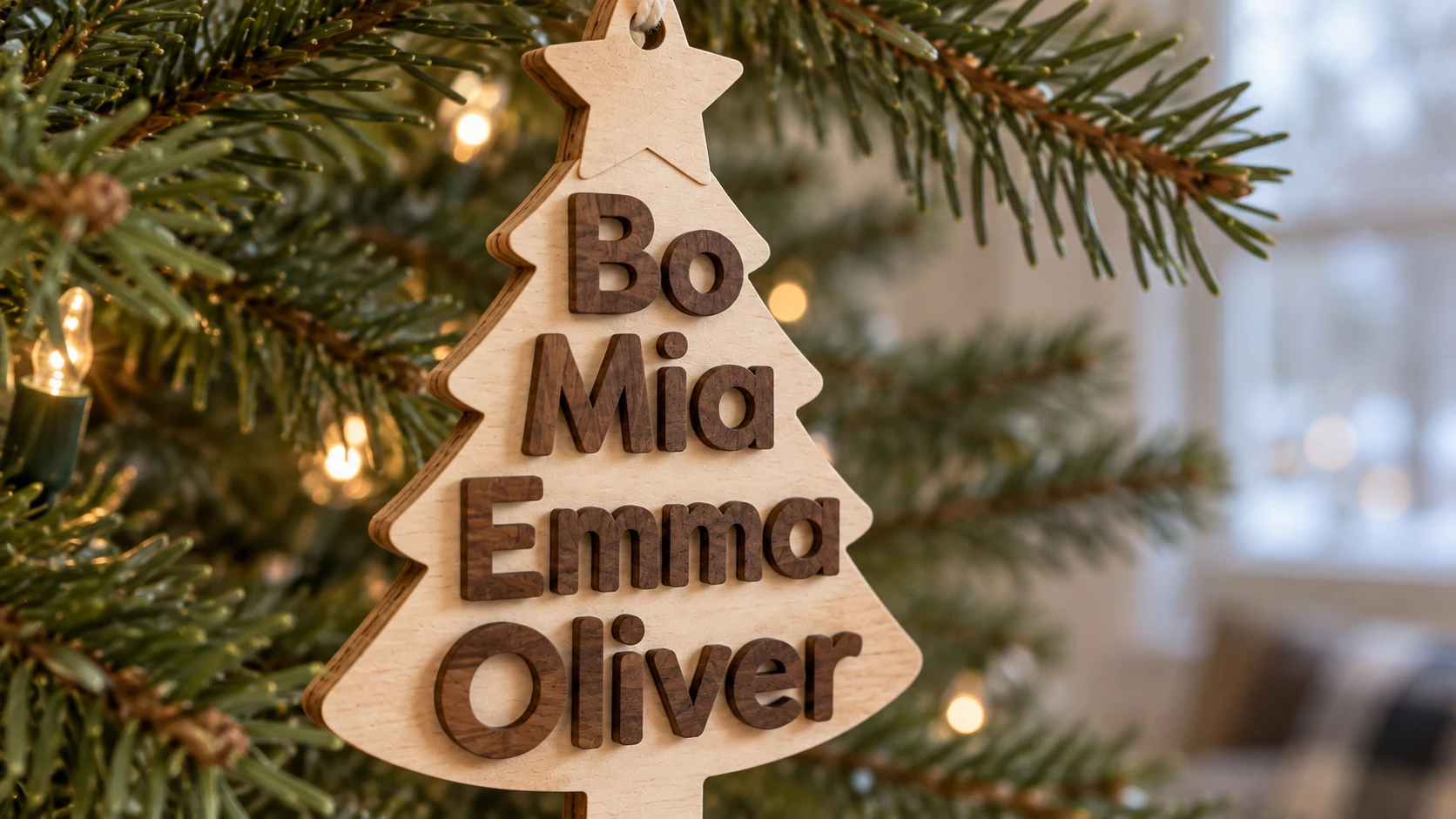
The solid birch backer supports every letter, including the small dots. It also keeps the separate name rows together as one ornament.
Set It Up for Your Machine
Evergreen separates the piece thickness, the backer thickness, and the colors, which maps cleanly onto how you make it:
For a 3D print, print the names in one color and the backer in another for an instant two-tone ornament, no painting.
For a laser, cut the name shape and the backer from contrasting materials (say, walnut names on a maple backer) and stack them.
For a CNC router, carve the piece and lean on the corner rounding, since inside corners can only be as sharp as your bit radius.
The design downloads as 3MF, STL, and SVG files in a single ZIP, so you have the right format for whichever machine you are running.
Info
Designing and previewing in Evergreen is free for everyone. Downloading the print and cut files needs any paid Craftgineer plan, starting at $4.99 per month. Build the whole ornament, spin it around in 3D, and subscribe when you are ready to produce a batch.
A Product Line, Not Just an Ornament
The name-tree ornament is the headliner, but the same tool covers a lot of ground:
Family Christmas ornaments. The classic. Names of the family, a star on top, hung on the tree. These sell fast in the holiday season.
Family name signs. Use the Stack layout for a wall sign with the family name and established date.
Wedding and anniversary gifts. Two names stacked with a date make a keepsake.
Teacher and team gifts. A stack of the whole class or the whole team.
Address and cabin signs. Stacked text with a clean backer.
If you plan to sell these, our holiday gift ideas guide and the craft fair selling guide are worth a read. For personalized keychains and name tags in the same made-to-order vein, KeyTag is the companion tool.
Go Build a Tree
Open Evergreen, type in a family's names, and flip on the tree layout with Auto Sort. Add a star, drop in a hanging hole, and spin it around in 3D. It is free to design, so build one for your own family first. It makes a very convincing sample piece when a customer asks what you can do.
Happy making.
Related Tools
Ready to try these tools?
Sign up free, no credit card required. Free tools available immediately.
Start Free