Canvas Pro: A Free Browser Image Editor and Sketchpad for Makers
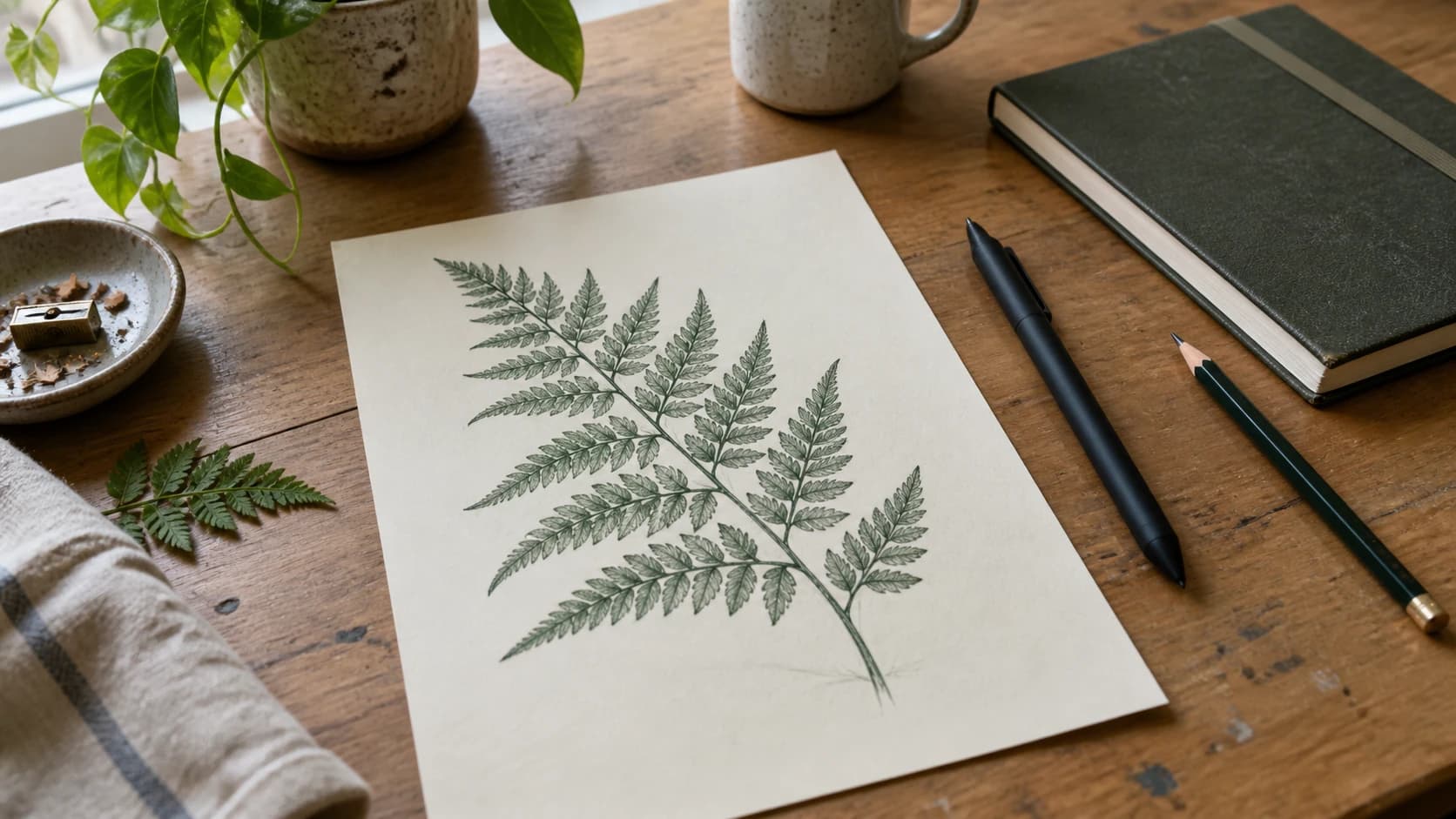
Every maker project starts with a design, and the design almost never arrives ready to use. You want to sketch an idea, touch up an image, drop some text over a shape, or draw a quick element from scratch. For years the answer was a heavyweight desktop editor with a subscription and a learning curve steeper than the project deserved, and it was not open when inspiration hit.
Canvas Pro is a free image editor and sketchpad that runs in your browser. It has a pressure-sensitive pencil, brushes, layers, shapes, text, and smart objects, and it opens in seconds with no install. Draw something new or edit an image you already have, then export a bitmap image for your project.
What Canvas Pro Actually Is
Canvas Pro leans toward drawing and painting, with a real layer system underneath. The toolbar down the left side gives you:
- Pencil with a pressure-sensitive stroke, selectable pencil types, and adjustable size, darkness, and smoothing
- Brush for softer painting and fills
- Eraser and Fill for cleanup and flat color
- Shapes like rectangles for building elements
- Text placed and styled on the canvas
- Clone and Stamp for duplicating and repairing areas
- Adjustments for brightness, contrast, and tone
It is closer to a browser sketchpad and photo touch-up tool than a vector illustration suite, and that is the point: it is fast to open and forgiving to work in.
PRINT. CUT. CARVE.
- Multiple formats (SVG, DXF, PNG)
- Machine-tested designs
- Commercial licenses
Sponsored by PrintCutCarve.com
The Pressure-Sensitive Pencil
The pencil is the star. If you have a pressure-sensitive tablet or stylus, pressure changes the weight and darkness of your stroke as you draw, so lines feel natural instead of flat and uniform. You can pick a pencil type (for example, an HB balanced tip), set the size and darkness, and dial in smoothing so shaky lines come out clean.
For makers, this is how you sketch a custom element, hand-letter a sign, or draw a simple motif to engrave without leaving the browser.
Tip
Use the [ and ] keys to size the pencil tip up and down while you draw, so you can go from broad fills to fine detail without breaking your flow.
Layers and Smart Objects
Layers are what make this a real editor and not a single-canvas doodle pad. Each element (a drawing, some text, a shape, a background) lives on its own layer that you can show, hide, lock, and reorder without touching the rest.
When you bring in an existing image, Canvas Pro adds it as an editable smart object. That means you can move and rework it non-destructively, keeping the original intact underneath your edits. Drop in a photo, sketch over it on a new layer, and adjust either one independently.
Tip
Lock a layer once it is finished so a stray pencil stroke cannot mess it up. Lock your background before you start drawing over it, then unlock it if you need a change.
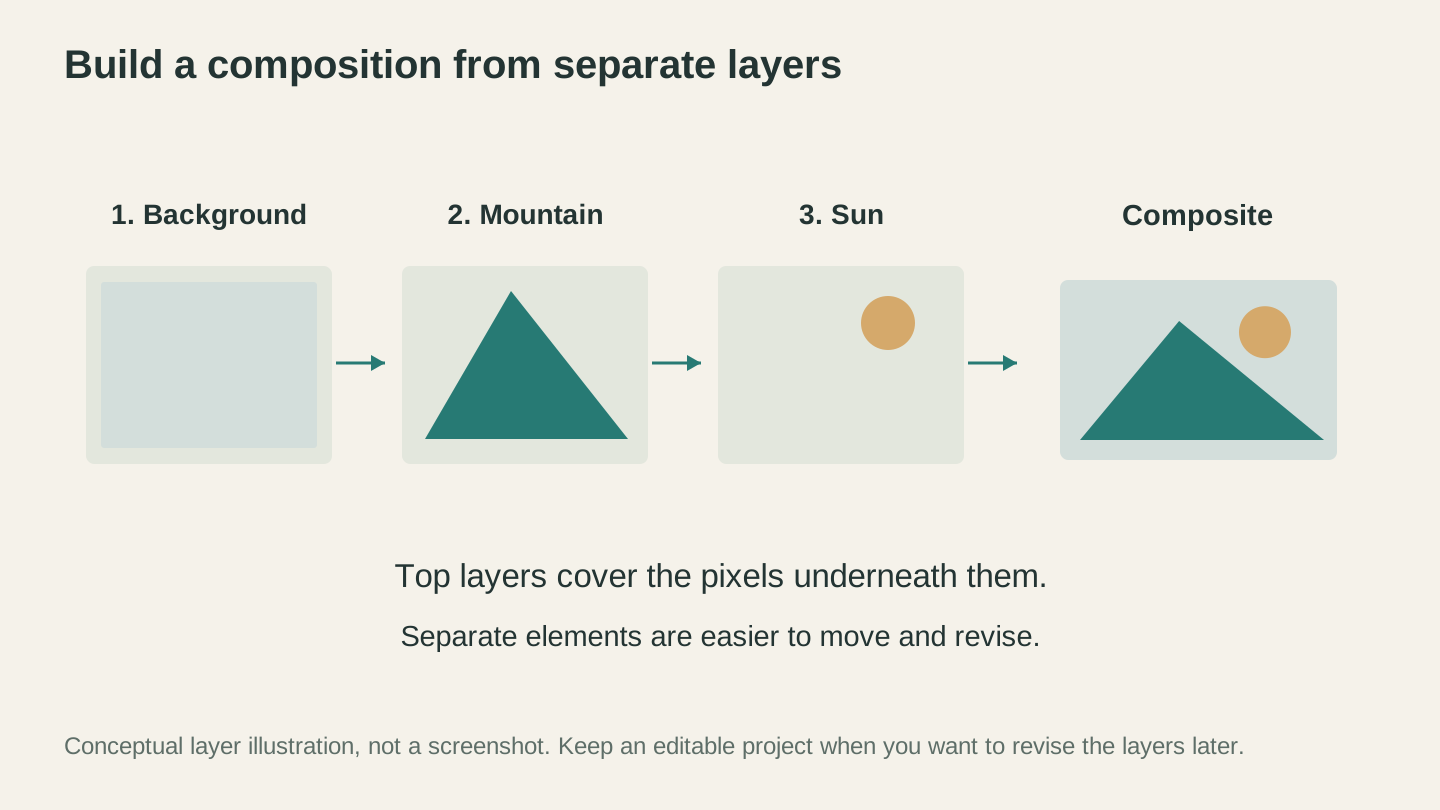
Keep the elements separate while you work. A layer above another can cover it, and changing the layer order changes the combined image.
Getting Your Work Out
When you are done, Canvas Pro exports a bitmap image. You can save it as PNG, JPG, or WebP, which covers most maker uses: a raster image to raster-engrave, a graphic for a mockup, or artwork to bring into another tool.
Canvas Pro exports raster images, not vector files. If you need vector cut lines instead, export your artwork as a PNG and run it through MonoTrace, our free vectorizer, to turn it into clean SVG outlines.
Info
Canvas Pro is free to open, draw in, and export from. The one feature tied to a subscription is saving a project in this browser so you can close the tab and come back to it later. That needs any paid Craftgineer plan, starting at $4.99 per month. If you finish a design in one sitting and export it, you never hit the paywall.
Where Canvas Pro Fits in Your Workflow
Canvas Pro is one stop in a chain, and it plays well with the other tools:
- Clean the source image. Use PixelPrep to remove a background or upscale a small logo.
- Draw or edit in Canvas Pro. Bring in the cleaned image as a smart object, sketch or touch it up on layers, add shapes and text.
- Export a bitmap (PNG, JPG, or WebP). Need vector cut lines? Run that image through MonoTrace to vectorize it.
- Engrave, cut, or print.
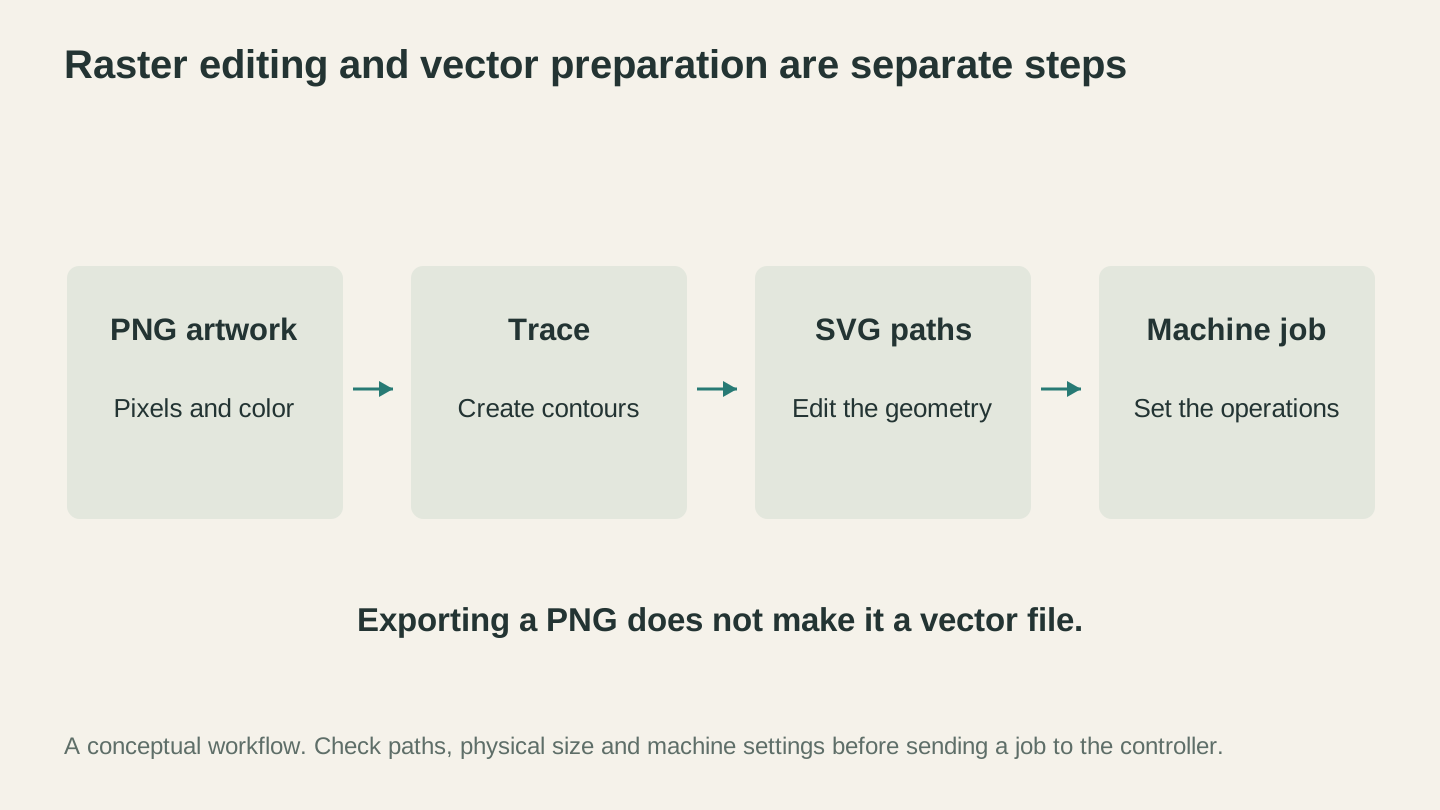
Use a raster export for image-based work, or trace it when the next step needs paths. A vector file still needs its size, geometry and machine operations checked.
Project Ideas
Hand-drawn signs. Sketch lettering and a simple border with the pressure-sensitive pencil, then export and engrave.
Photo touch-ups. Bring a photo in as a smart object, paint out a distraction, adjust the contrast, and send it to the laser.
Quick composites. Layer a logo over a background, add text, and export a PNG for a mockup or a print-then-cut project.
Sketch, then cut. Draw a shape freehand, export it, and run it through MonoTrace to turn it into a clean vector cut line.
New to designing for a laser or cutter? Our guide on how to prepare files for laser cutting and the roundup of free design software for laser, CNC, and 3D printing are good next reads.
Go Open Canvas Pro
Open Canvas Pro, grab the pencil, and draw something. It is free to use and export, it opens in seconds, and it is the fastest way to sketch or touch up a design without a desktop app. Once it is your first stop for a quick edit, the trip to a bloated editor gets a lot rarer.
Happy making.
Related Tools
Canvas Pro
Edit images with layers, brushes, shapes, text, and selection tools. Export PNG, JPEG, or WebP.
MonoTrace
Turn photos and artwork into SVG outlines for free, with an optional sketch mode.
PixelPrep
Remove image backgrounds or upscale images at the available enlargement settings.
Background removal requires a plan; upscaling uses credits
Ready to try these tools?
Sign up free, no credit card required. Free tools available immediately.
Start Free