NodeCraft: A Free In-Browser Vector Editor for Laser and CNC
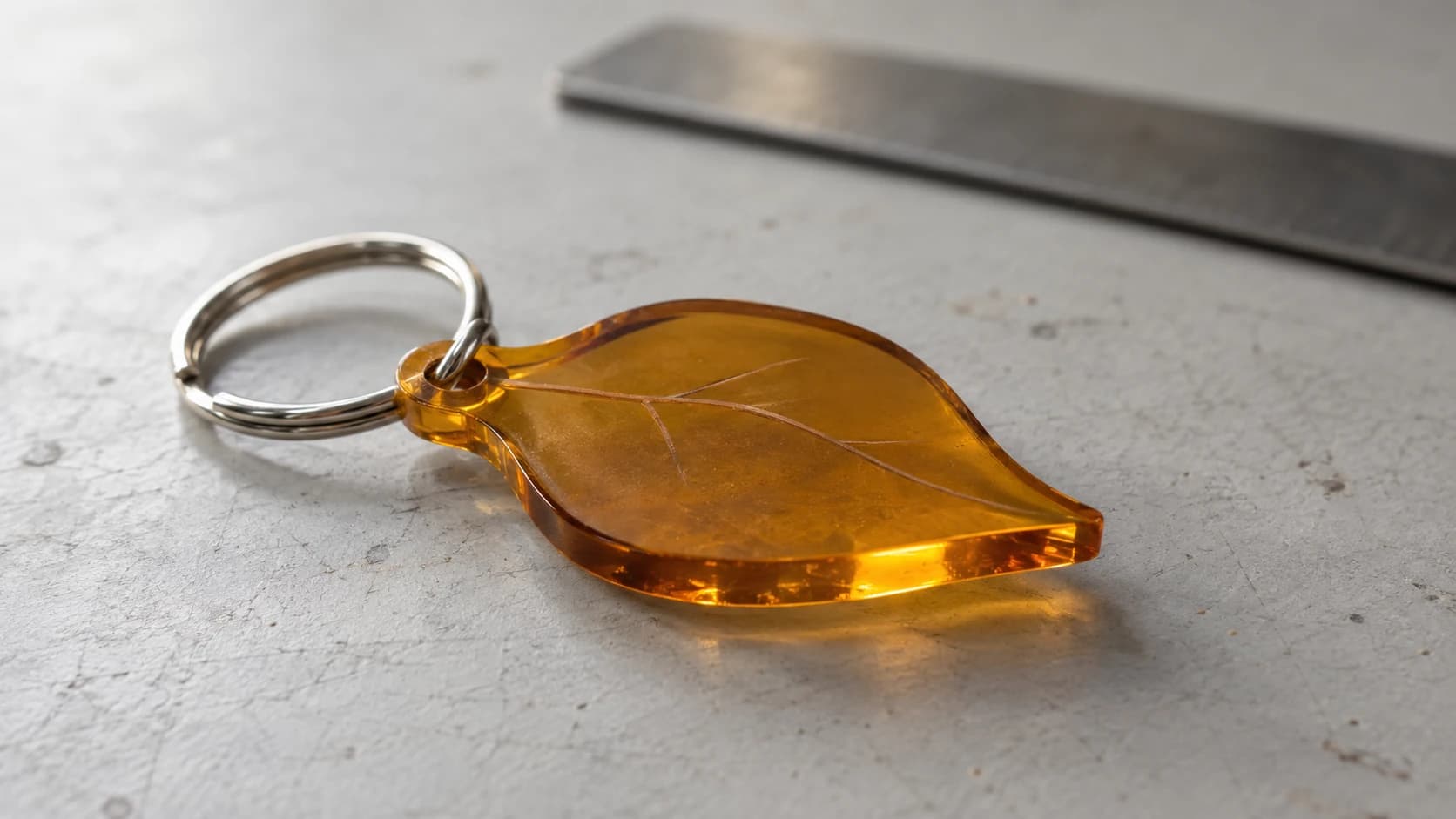
You downloaded an SVG, opened it on the laser, and something is off. A corner is too sharp for your bit. There is a stray node throwing off the path. Two shapes need to become one. None of this is hard, but it means firing up a heavyweight desktop editor, waiting for it to load, and hunting through menus for the one tool you need. For a two-minute fix, that is a lot of overhead.
NodeCraft is a free vector editor that runs right in your browser. Draw shapes, edit individual nodes, round corners, combine paths, and export a clean, machine-ready SVG. No install and no watermark. A free Craftgineer account is required.
What NodeCraft Is For
NodeCraft is not trying to be a full illustration suite. It is a focused vector editor aimed at the jobs makers actually do before a cut:
- Clean up a downloaded or traced SVG by deleting stray nodes and fixing paths
- Edit nodes directly to reshape a curve or straighten an edge
- Round corners to a specific radius so they suit your laser kerf or CNC bit
- Combine shapes with boolean operations (union, subtract, intersect)
- Trace over a reference image with the Pen tool
- Export machine-ready SVG with everything on clean paths
Because it lives in the browser, it opens instantly and works the same on any machine you sit down at.
PRINT. CUT. CARVE.
- Multiple formats (SVG, DXF, PNG)
- Machine-tested designs
- Commercial licenses
Sponsored by PrintCutCarve.com
The Node Editing You Actually Wanted
The name is the point. Most quick fixes come down to moving, adding, or deleting nodes, and NodeCraft makes that the main event.
Select a path, grab a node, and drag it. Adjust the handles to reshape a curve. Delete the node that some auto-tracer left in the middle of a straight line. Convert a corner into a smooth curve or the reverse. This is the surgical control you need when a shape is 95% right and just needs a nudge.
Tip
Auto-traced files are notorious for having far more nodes than they need, which can make a laser stutter or a CNC path chatter. Select the path in NodeCraft and clean out the redundant nodes. Fewer, well-placed nodes cut smoother and faster.
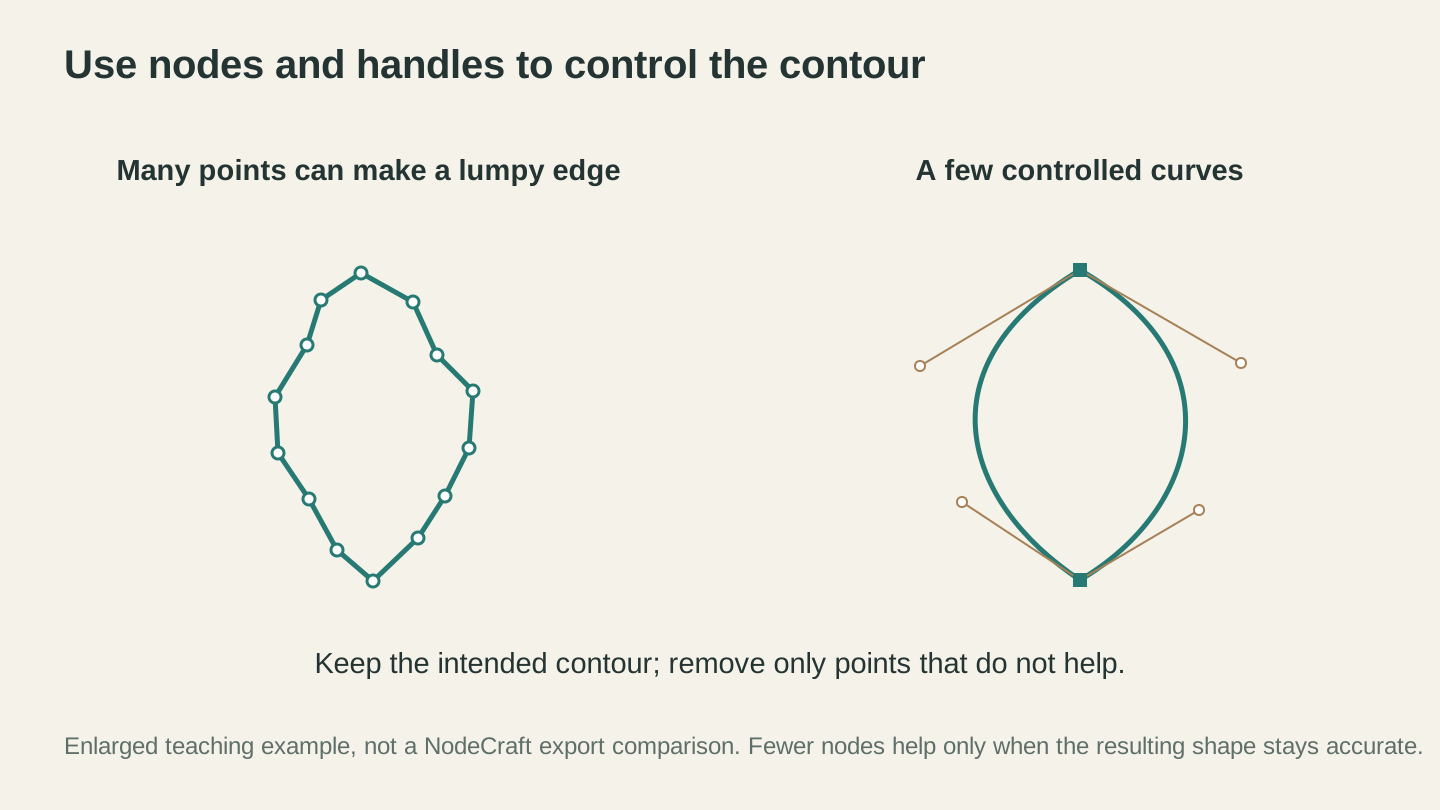
Adjust the contour deliberately. Removing nodes helps only when it preserves the shape you intended; this enlarged diagram illustrates the principle.
Round Corners the Right Way
Corner rounding sounds cosmetic, but for cutting it is practical. NodeCraft lets you set a radius on corners so they match your process.
On a CNC router, an inside corner can never be sharper than your bit radius. A 1/4" bit simply cannot cut a crisp inside corner, so rounding those corners to at least the bit radius makes the design match what the machine can actually do.
On a laser, softening sharp outer corners reduces the little burn buildup that happens when the head pauses to change direction, and it just looks more finished on things like tags, coasters, and signs.
Trace Over a Reference Image
NodeCraft lets you drop in a reference image, lock it in place, and trace over it with the Pen tool. The reference sits behind your vector artwork and is never included in the SVG export, so you get clean geometry with no leftover raster.
This is the manual counterpart to automatic tracing. When you want precise control over exactly where the lines go (a logo redraw, a clean outline from a rough sketch), tracing by hand over a locked reference beats fighting an auto-tracer's guesses.
Info
Want the automatic route instead? MonoTrace converts an image to vector outlines for you in one step, free. Trace with MonoTrace, then bring the result into NodeCraft to tidy up the nodes. The two tools pair naturally.
Combine Shapes with Boolean Operations
Boolean operations are how you build a complex shape out of simple ones:
| Operation | What it does | Example |
|---|---|---|
| Union | Merges shapes into one | Weld two overlapping circles into a peanut shape |
| Subtract | Cuts one shape out of another | Punch a hanging hole out of a tag |
| Intersect | Keeps only the overlap | Trim a pattern to fit inside an outline |
There is also a Weld option for text, which fuses overlapping or script letters into a single connected path. That matters for cutting: script fonts and tight kerning can leave letters as separate floating pieces, and welding turns them into one continuous cut.
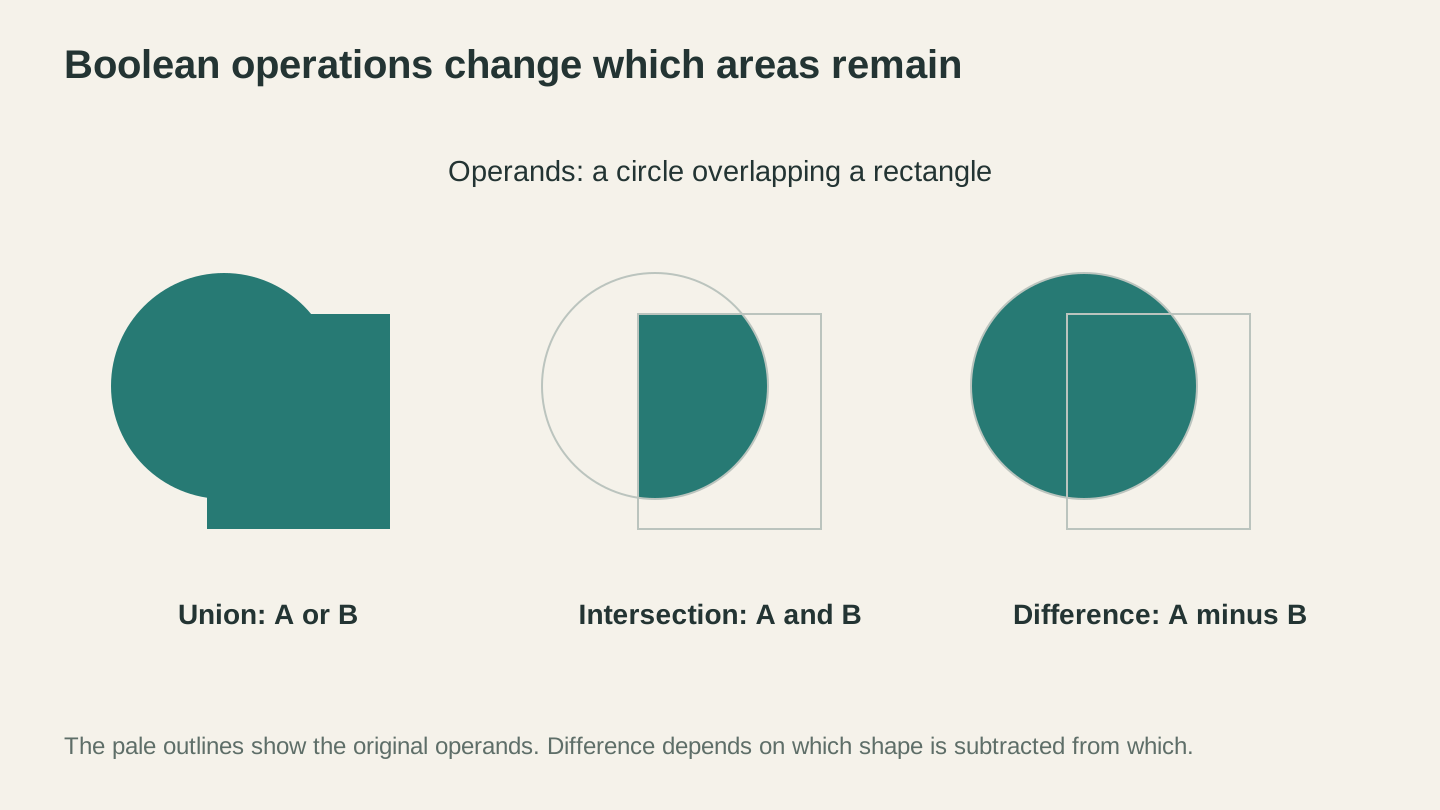
Union keeps either area, intersection keeps the shared area, and difference subtracts one shape from the other. Check which object is being subtracted before committing the operation.
Beyond the Basics
NodeCraft has a few extras worth knowing about:
- Offset grows or shrinks a path outward or inward, handy for adding a border or making an inlay-friendly gap.
- Warp includes perspective warp with four corner points and a mesh deform on a control grid, for reshaping artwork to fit a curved or angled surface.
- Text with font control, placed as editable vectors and weldable for clean cutting.
- Align and transform tools to line objects up precisely and reposition them.
- Snapping and a grid so things land where you mean them to.
A Typical Cleanup Workflow
Here is how NodeCraft fits into a real job:
- Find or trace an SVG (from a free source, or via MonoTrace).
- Open it in NodeCraft.
- Delete stray nodes and simplify overly dense paths.
- Round the corners that need it for your bit or your look.
- Weld any script text or overlapping shapes into single paths.
- Export the clean SVG and send it to your machine.
If you also need to convert between formats along the way, the File Converter handles SVG, DXF, PDF, and more. And our guide on how to prepare files for laser cutting covers what a cut-ready file should look like.
Go Edit a Path
Open NodeCraft and drop in an SVG you have been meaning to clean up. Grab a node, round a corner, weld some text, and export. It is free, it opens instantly, and once it becomes your go-to for quick vector fixes, you will stop dreading the little cleanup jobs.
Happy making.
Related Tools
NodeCraft
Edit vector designs with shapes, nodes, layers, and artboards. Export SVG artwork or layered PDF.
MonoTrace
Turn photos and artwork into SVG outlines for free, with an optional sketch mode.
File Converter
Convert supported combinations of vector, document, raster-image, and 3D-mesh formats.
Plan required for downloads
Ready to try these tools?
Sign up free, no credit card required. Free tools available immediately.
Start Free